
Terraform State: The Silent Source of Truth
What is StateFile ?
Terraform works in a declarative way. You don’t tell it how to do something — you tell it what you want. Terraform then figures out the steps to get there. Say you want to create a VNET. Instead of writing commands one by one, you just define the structure you need. Terraform analyzes the current state and handles the create, update, or delete operations itself.
This is where the Terraform state file comes in. To understand what’s already there, Terraform needs a record of the resources it has created and managed. That record is usually stored in a file called terraform.tfstate. I say “usually” because as we’ll get into shortly there are several different ways to store state files.
Before any deployment, Terraform compares two things. First, your .tf files: what you want. Second, your .tfstate file: what’s actually out there right now. If these don’t match, Terraform plans the changes.
Thanks to the state file, Terraform knows which resources were created earlier, what needs changing, and what should be updated, destroyed, or rebuilt. Inside the state file, you’ll find the version number, Terraform version, how many times apply has run (serial), module outputs, resource details, and metadata about deployed resources. So it’s not just a list of what got created — it holds every reference Terraform needs to manage that environment.
Here’s what a simple state file looks like:
{
  "version": 4,
  "terraform_version": "1.5.0",
  "serial": 3,
  "lineage": "1234-abcd-5678-efgh",
  "outputs": {
    "rg_name": {
      "value": "rg-test",
      "type": "string"
    }
  },
  "resources": [
    {
      "mode": "managed",
      "type": "azurerm_resource_group",
      "name": "rg"
    }
  ]
}
Local or Remote?
Local State: By default, Terraform stores the state file as terraform.tfstate in the directory where you run terraform apply. Keeping state locally is fine if you’re working solo on small experiments, but lose or corrupt that file and you’re in trouble. It’s also a non-starter for team collaboration or CI/CD pipelines. Where and how the state file is stored is determined by the backend configuration, typically defined in a backend.tf file.
terraform {
  backend "azurerm" {
    resource_group_name  = "rg-tfstate"
    storage_account_name = "stterraformprod"
    container_name       = "tfstate"
    key                  = "prod.terraform.tfstate"
  }
}
Azure Storage: Storing state files in Azure Storage gives you centralized control and works well for teams and CI/CD. It supports state locking, you can use RBAC, and access becomes much more manageable. The trade-off is extra setup work. If you’re using Microsoft-hosted agents, your storage account needs to be publicly accessible — which may not fly with your security team. In that case, look at DevOps Managed Pools or self-hosted runners instead.
Terraform Cloud: Terraform Cloud is HashiCorp’s own platform. Beyond state management, it handles pipelines too. You get a UI for variable management, state locking, version history, and run history — plus multi-cloud support out of the box.
Other Options: Depending on your cloud environment, state files can also live in AWS S3, Google Cloud Storage, or in niche cases, Kubernetes Secrets.
What Happens When You Delete the State File?
If the state file goes missing, Terraform acts like nothing exists in your environment. That’s because Terraform relies on this file to know what it built in the first place. So it tries to recreate everything. Depending on the resource type, you might hit duplicate resource errors, naming conflicts, or end up rebuilding things that were perfectly fine. In production, losing your state file is a serious operational risk.
If it happens, you generally have two options:
- Got a backup? Restore the state file.
- No backup? Pull existing resources back into state using terraform import.
That same import approach works when you want Terraform to take over resources that were created manually.
terraform import <RESOURCE_ADDRESS> <RESOURCE_ID>
terraform import azurerm_resource_group.rg /subscriptions/xxx/resourceGroups/rg-test
State and Config Mismatch
We mentioned that Terraform looks at the state file to decide what was created before, what needs changing, and what to update, destroy, or rebuild. But when someone deletes, modifies, or updates a Terraform-managed resource manually — through the portal, CLI, or whatever — state and config fall out of sync. Terraform’s view of the world no longer matches reality. Say you create a security rule on an NSG through Terraform. Later, someone tweaks that rule or deletes it entirely. That’s what we call resource drift. At this point, you have two choices:
- Override: Run terraform apply to wipe out the manual change and bring infrastructure back in line with code.
- Accept: Update Terraform state to reflect what’s actually out there.
To update state, you’ll typically use:
terraform import: Brings an existing resource under Terraform management. Basically says, “this thing is yours now.” Useful when you want Terraform to adopt manually created resources.
terraform state rm: Removes a resource from state only. Doesn’t touch the actual resource — just tells Terraform to stop managing it. Handy when a resource needs to be handled manually going forward.
Handling Expected Drift
Some resources have settings managed by the platform itself or by other teams. For example, you deploy an App Service, then your dev team updates app_settings during their release (release version, feature flags, environment variables, etc.). Terraform sees this as drift because state no longer matches reality. If you don’t want to fight these small, intentional changes every time, use lifecycle blocks in your module to ignore specific field:
lifecycle {
  ignore_changes = [
    app_settings,
    connection_string,
    sticky_settings,
    virtual_network_subnet_id
  ]
}
This way Terraform deliberately ignores changes in those fields and stops generating pointless update plans.
Drift Check?
Drift check is simply asking: does what’s in my state file still match what’s actually out there? The quickest way to find out is terraform plan. It compares state against reality through the provider and shows you any gaps. For a cleaner, safer check, most people prefer:
terraform plan -refresh-only
This command is read-only — it won’t create, destroy, or modify anything. It just reports differences between state and the real environment. Much safer for production drift detection.
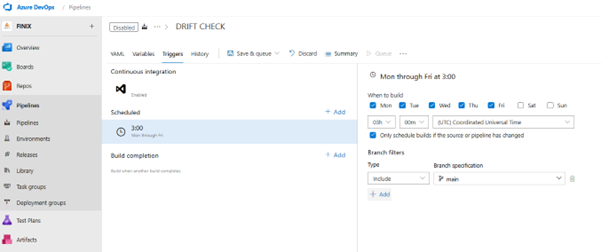
You can wire this into a pipeline and schedule it to run every night. If drift shows up, trigger an alert, email, or Teams notification. This approach is pretty standard in enterprise environments for keeping governance and visibility tight.
Does State File Size Matter?
State files grow over time based on how many resources you have, how detailed their attributes are, and what metadata gets added on each apply. Small projects might see files in the KB range. Large environments can hit tens of megabytes. As the file gets bigger, terraform plan and terraform apply slow down. With remote backends, you’re also paying the cost of download and upload time. You might not notice this in a small setup, but once you’re managing 10,000+ resources, it becomes a real performance hit and keeps state locks held longer. Here’s how to keep things lean:
- 1. Split Your Resources: Use separate state files for different layers — Network, Compute, Data, whatever makes sense for your architecture. This keeps individual states smaller and easier to work with.
- 2. Reference, Don’t Copy: Instead of duplicating large state files, use terraform_remote_state or data sources to pull in what you need from other states.
- 3. Prefer Native Providers: Native resources like azurerm_subnet keep state cleaner than catch-all tools like azapi_resource. Less noise, more maintainable.
- 4. Avoid Bloated Attributes: Some platform services — Web Apps, Function Apps, and the like — dump massive config blocks into state. Be selective about what you track.
- 5. Clean Up Old Versions: Versioned backends can accumulate historical copies that just add operational clutter. Prune them.
Checking File Size
Local:
ls -lh terraform.tfstate
Remote (Terraform Cloud, etc.):
$size = (terraform state pull | Measure-Object -Character).Characters
"$([math]::Round($size/1KB, 2)) KB"
Comments